
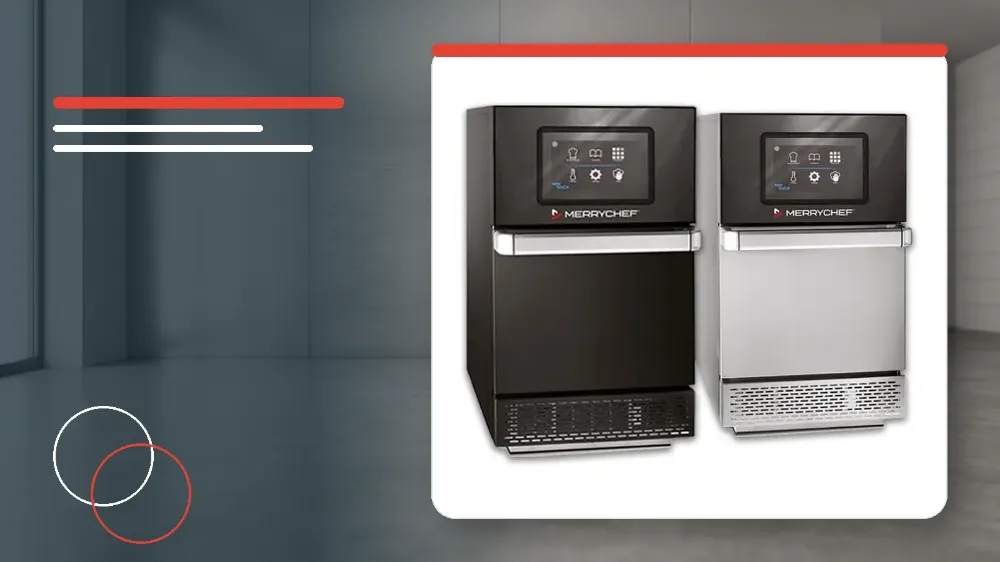
To upload a menu file to a Merrychef conneX 12, download and extract the zipped menu package to produce a root folder named welbilt on your USB drive, access the MANAGER settings on the screen, insert the USB stick into the port behind the front filter door, and run the update to oven routine.
Applies to
This procedure applies exclusively to the Merrychef conneX 12 high-speed oven.
Before you start
- You must obtain the approved menu file by scanning the relevant QR code or by visiting the Software Firmware downloads section on www.merrychef.com.
- You must extract the downloaded zip file directly onto your USB stick so that an unzipped folder named welbilt is created.
- You must ensure that the extracted welbilt folder is left intact and is not opened or clicked into any further on your computer.
- You must verify that the internal cavity of the Merrychef conneX 12 oven is completely empty before starting the unit.
Safety warnings
- Do not remove the USB drive from the data port while the transfer update is in progress.
- Do not leave the front filter door open after removing the USB stick.
Preparing the USB Storage Drive
Proper preparation of the USB drive is essential before approaching the oven interface.
Commercial kitchen operators can access the required menu files online at www.merrychef.com under the Software Firmware downloads area or by scanning the designated QR code.
The downloaded zipped file must be saved onto the root directory of a standard USB storage drive.
By right-clicking the downloaded archive and choosing extract all, the archive unpacks into an unzipped directory named welbilt.
The operator must not click on or open the extracted welbilt folder any further, as altering the structure will prevent the oven from reading the file correctly.
- Access the menu file by scanning the official QR code or downloading it from www.merrychef.com.
- Download the zipped menu file directly onto your USB stick.
- Right-click the zipped file and select the extract all option.
- Verify that an unzipped folder named welbilt appears on the USB drive.
- Leave the welbilt folder unopened and ready for oven transfer.
Accessing the Manager Updates Screen
The Merrychef conneX 12 requires manager authentication to initiate any menu data updates.
Before operating the touchscreen, ensure that the oven cavity is completely empty of food, pans, and accessories.
Pressing the screen activates the appliance and brings up the initial display options.
The manager menu is protected by an access code to prevent unauthorised changes during kitchen service.
- Press the touchscreen to start the Merrychef conneX 12 oven.
- Ensure that the oven cavity is completely empty.
- Press the SETTING button once the main screen becomes visible.
- Type in the password MANAGER on the touchscreen keypad.
- Press the green tick icon to confirm the password.
- Press the UPDATES button to open the data transfer interface.
Inserting the USB and Uploading the Menu
The data port on the Merrychef conneX 12 is positioned behind the front filter cover on the left-hand side.
The operator must insert the prepared USB drive into this specific data port before selecting the update command on screen.
Once the file transfer starts, the USB drive must remain firmly inserted until the screen explicitly confirms completion.
- Open the front filter door located on the left-hand side of the oven.
- Insert the programmed USB stick into the internal data port.
- Press the UPDATE TO OVEN button on the touchscreen.
- Select the required new menu file from the list displayed on the screen.
- Press the green tick icon to confirm your file selection.
- Allow the update to proceed without removing or disturbing the USB drive.
- Press the tick icon once the screen confirms that the update is completed.
Exiting Settings and Preheating the Oven
After confirming the update, the operator must remove the USB storage device and shut the filter compartment securely.
Navigating back to the operational screen is done by pressing the back arrow twice.
Depending on kitchen configuration, the oven will either start preheating automatically or prompt the operator to choose a preheat temperature.
When the preheat cycle completes, the Merrychef conneX 12 is fully ready for service with all newly uploaded cooking programs.
- Remove the USB stick from the data port.
- Close the front filter cover securely.
- Press the back arrow on the screen.
- Press the back arrow a second time to return to the operational display.
- Wait for a few seconds on the operational screen.
- Select the correct cooking temperature if multiple pre-heat profiles are configured.
- Allow the oven to finish preheating to the correct temperature before starting service.
Stop and get help if
- Do not proceed with updating if food or objects remain inside the oven cavity.
- Do not remove the USB stick while the screen indicates that updating is in progress.