










The short answer: from the CiBO home screen, open Recipe Manager, select the existing recipe you want to change, edit its name, icon or steps, return to the recipe summary and press Save. Changed settings are shown in orange until they are saved. This is an editing workflow for an existing CiBO recipe; the quick-start guide does not describe creating a completely new blank recipe.
Before you edit
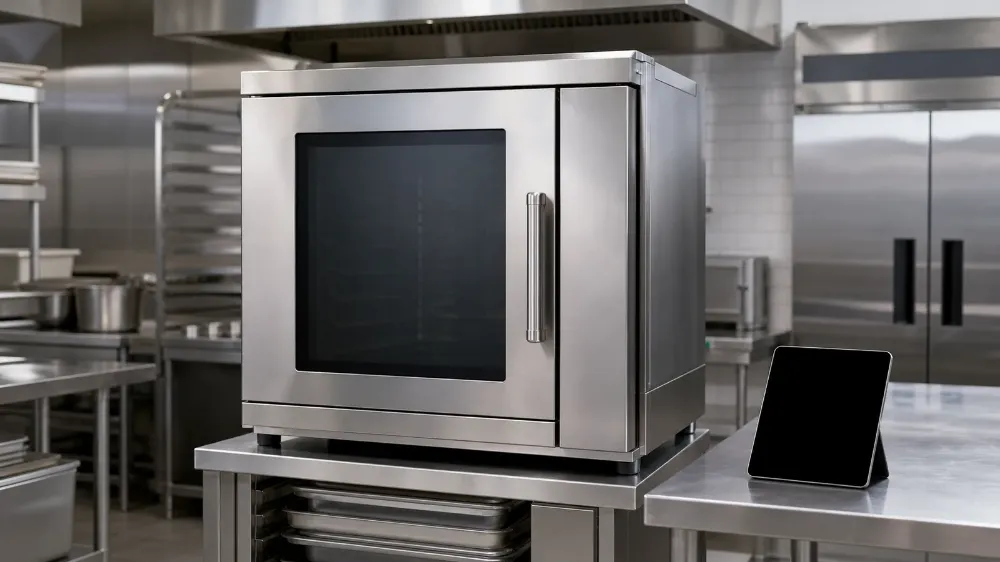
Use this guide only for a Lincat CiBO operated by a trained user. It must not be applied to a CiBO+, whose controls and workflow are outside the verified source. The home screen runs recipes, while Recipe Manager is the documented area for selecting and editing an existing recipe.
Programme time, temperature and heat-source settings control the oven cycle; they are not proof that food has reached a safe core temperature. Keep recipe development and food-safety validation separate, and verify the finished food under your site's HACCP controls.
Edit the existing programme
- On the home screen, press Recipe Manager to enter the programming area.
- In Recipe Manager, press the existing recipe you want to edit. Do not use this workflow as instructions for creating a blank recipe, because that process is not given in the quick-start guide.
- On the recipe summary and edit screen, press the name bar if you need to rename the recipe. Use the icon control if you need to attach or change an icon from the library.
- Press a recipe step to edit it, or use the steps control to add or edit recipe steps.
- On the step screen, touch the time or temperature field and adjust it with the slider. Tap the end of the bar for small increments, or swipe for larger increments.
- Use the heat-source controls to switch the grill, oven and heated base on or off for that step. The guide identifies the top control as grill, the middle control as oven and the bottom control as base.
- Do not try to combine the grill with the other heat sources. The quick-start guide says the grill can run only on its own because of the 13 A power limit, and the controller prevents the prohibited combination.
- Move between the recipe steps as needed. When the edits are ready for review, press Recipe Summary.
- Review the summary before saving. The settings changed during the session are highlighted in orange. Press Save to keep the recipe, or use the exit option if the changes should not be saved. Once saved, the changed settings return from orange to black.
What the summary tells you
The Recipe Summary button returns you from the Step screen so you can review changes and then save or exit. The recipe summary shows which heat sources are used in each step. Use it to confirm that the intended steps, times, temperatures and heat-source choices are represented before pressing Save. The manual does not state minimum or maximum step times or temperatures, a maximum number of steps, or a save-confirmation message. Do not invent any of those limits or assume a change has been accepted based on a message the guide does not document.
When to stop
Stop if the screen layout does not match the CiBO controls described here, if the recipe cannot be selected, or if the expected Save control is unavailable. The quick-start guide provides no programming-specific troubleshooting sequence, so unresolved control or saving problems should be referred through the approved Lincat or Caterboss support route.
Do not publish or use a changed cooking programme in service until the recipe owner has checked the settings and the site's separate food-safety validation has been completed.